GazeStick

Turn your webcam into a virtual gamepad right stick using eye tracking. No dedicated eye tracking hardware required — just a webcam and the Beam Eye Tracker app.

Download Latest Release View on GitHub

How It Works

Gaze data flows from your webcam through the Beam Eye Tracker app into GazeStick, which drives a virtual Xbox controller.

📷 Webcam
📡 Beam Eye Tracker
🎯 GazeStick
🎮 Xbox Controller
🖥️ Your Game

Key Features

Everything you need for a smooth, natural eye tracking to gamepad experience.

🎯

Deadzone Configuration

Circular deadzone ensures your stick stays neutral when looking at the center of the screen. Adjustable from 0.00 to 0.50.

📈

Sensitivity Control

Adjust how far you need to look for full stick deflection. Fine-tune from 0.1x to 5.0x to match your preference.

🔄

EMA Smoothing

Exponential moving average filtering removes jitter from raw gaze data for buttery smooth camera movement.

Global Toggle F9

Press F9 anywhere to toggle eye tracking on or off. When off, the stick returns to neutral instantly.

🔄

Y-Axis Invert

Toggle Y-axis inversion for games that expect inverted vertical camera control. Changes apply in real time.

🖥️

System Tray UI

Runs quietly in the system tray. Left-click to toggle, right-click for the full settings panel. No main window needed.

Prerequisites

Before using GazeStick, make sure you have these installed.

1

ViGEmBus Driver

Virtual gamepad emulation driver that creates the Xbox 360 controller GazeStick outputs to. Install and restart once.

Download ViGEmBus →
2

Beam Eye Tracker App

Free eye tracking application that uses your webcam. Must be running with Gaming Extensions activated for GazeStick to connect.

Download Beam Eye Tracker →
3

Beam SDK DLL

The beam_eye_tracker_client.dll is included in every GazeStick release. No separate download needed.

Included in Release ⬇

Quick Start

Get up and running in under 2 minutes.

1

Install Prerequisites

Install ViGEmBus (restart if prompted), then install and launch the Beam Eye Tracker app. Sign in and activate Gaming Extensions.

2

Download & Extract

Download the latest GazeStick-*.zip from the releases page and extract it anywhere.

3

Run GazeStick

Launch GazeStick.exe. It appears in your system tray. Make sure Beam Eye Tracker is running and tracking.

4

Look & Play

Look at the center of your screen to keep the stick neutral. Look toward the edges to move the virtual stick in that direction.

Settings Panel

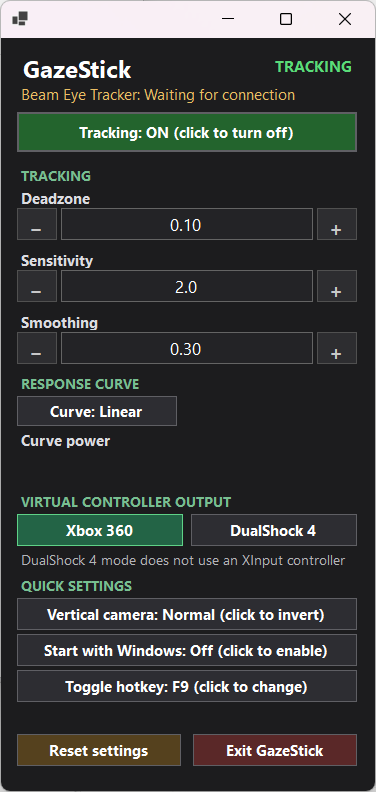
All controls are accessible from a compact popup panel in the system tray.

GazeStick ● ON
Deadzone 0.10
Sensitivity 1.0
Smoothing 0.30
SettingDescriptionDefault
deadzoneCircular deadzone radius (0.00–0.50)0.10
sensitivityStick output multiplier (0.1–5.0)1.0
smoothingEMA smoothing factor (0.0–0.9)0.30
invertYInvert Y-axis outputfalse
toggleHotkeyGlobal toggle hotkeyF9
startWithWindowsAuto-start with Windowstrue
startActiveStart with tracking activetrue

Architecture

Four services, cleanly separated by interface, make up the GazeStick core.

        graph TD
            subgraph Beam["Beam Eye Tracker App"]
                SDK[Beam SDK
Local Socket Server] end subgraph GS["GazeStick"] TS[TrackingService
Polls Beam SDK ~60fps] SM[StickMapper
Deadzone → Sensitivity → Smoothing] VP[VirtualPad
ViGEm Xbox 360 Controller] TA[TrayApp
System Tray UI + Hotkeys] end subgraph Game["Your Game"] GC[Game Controller Input
Right Stick RX/RY] end SDK -->|Gaze X/Y 0.0–1.0| TS TS -->|Raw Gaze| SM SM -->|Stick Values -1.0 to 1.0| VP VP -->|ViGEmBus| GC TA -->|Toggle / Configure| TS TA -->|Update Params| SM

Designed for Combination

GazeStick provides only the right stick output. This is intentional.

Pair with reWASD or Similar Tools

GazeStick is designed to be one piece of your input setup. Use controller remapping software like reWASD to merge GazeStick's virtual Xbox controller with your physical controller, keyboard, or mouse. Each tool handles one aspect of input, and a remapping layer ties them together.

This is the standard accessibility pattern: dedicated tools feeding into a unified input layer.

Important Notices

Please read these disclaimers before using GazeStick.

Non-Medical Device

This software and the underlying Beam Eye Tracker SDK are not medical devices. They are not intended, nor should they be used, to replace professional medical advice, diagnosis, or treatment.

High-Risk Use Prohibition

This software must not be used in high-risk environments or safety-critical applications where any software malfunction or interruption could lead to personal injury, loss of life, or physical/environmental damage.

Data Privacy

Eye-tracking / gaze data is processed entirely locally on your machine and is used only for controller mapping. No gaze data is logged, recorded, or transmitted to any remote server without your explicit consent.